
On 12 May 2026, a researcher operating under the handle Nightmare-Eclipse published a working proof of concept that bypasses BitLocker on Windows 11, Windows Server 2022, and Windows Server 2025. The tool is called YellowKey. It needs nothing more than physical access to the device and a USB stick. No password. No recovery key. No specialist hardware.
We’ve tested it. It works. And if you’re running BitLocker on a Windows 11 laptop with the default settings, which is roughly 99% of UK business deployments we see, your “encrypted” drive can be read by anyone who picks it up.
There is no patch as of this writing. Microsoft has not assigned a CVE. This post explains what’s actually happening, why it works, and what to do about it before Microsoft ships a fix.
What the attacker actually does
The full attack chain is short enough to fit on a Post-it note:
- Copy a prepared folder to a USB drive at
\System Volume Information\FsTx - Plug the USB into the target machine while BitLocker is active
- Reboot into the Windows Recovery Environment (Shift + Restart from the login screen, no login required)
- Hold the Ctrl key during recovery startup
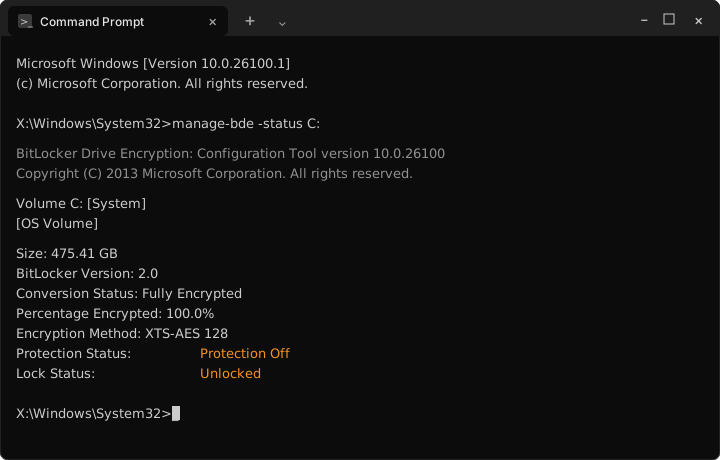
- The Windows Recovery Environment drops to a command prompt with the BitLocker-protected drive already unlocked and readable
From that command prompt, the attacker has unrestricted access to everything on the drive. Files, credentials, certificates, the lot. They can copy data, install persistent malware, plant backdoors, or image the entire disk for offline analysis.
A few minutes of physical access. That’s the entire requirement.
Why it works: WinRE, FsTx, and a deleted file
BitLocker works because the disk encryption key is sealed inside the Trusted Platform Module (TPM) chip on your motherboard. At boot, the TPM unseals the key after confirming the system hasn’t been tampered with, and the drive becomes readable. By design, the Windows Recovery Environment (WinRE) gets the same key, because it needs to repair systems that won’t boot normally.
A small configuration file called winpeshl.ini tells WinRE what to launch when it starts. Normally that’s the recovery interface, the familiar blue screens with repair options. When winpeshl.ini is missing, WinRE falls back to a plain command prompt. With the BitLocker drive already mounted and unlocked.
YellowKey deletes winpeshl.ini.
The mechanism it uses is a Windows feature called Transactional NTFS (TxF), introduced in Vista in 2007 and marked deprecated years ago. TxF logs file system changes before applying them, like a database transaction log. A binary called autofstx.exe inside WinRE replays those logs from any attached storage. It processes them across volumes, meaning a USB stick’s transaction logs can modify files on the system’s own internal recovery partition.
That cross-volume behaviour is the buried headline. Will Dormann, principal vulnerability analyst at Tharros Labs, reproduced the attack and called the cross-volume FsTx replay “a significant flaw on its own,” entirely separate from what YellowKey uses it for.
The component responsible exists in normal Windows installations without the triggering behaviour. It only behaves this way inside WinRE. Windows 10 is not affected. Nobody outside Microsoft has fully explained why.
Who is at risk
The vulnerability affects:
- Windows 11: all versions
- Windows Server 2022: all versions
- Windows Server 2025: all versions
Windows 10 is not affected.
The default BitLocker configuration on most Windows 11 business laptops uses TPM-only unlocking. The drive decrypts automatically at boot, no PIN required. That’s the convenient configuration. It’s also the one YellowKey targets. Independent reproductions, including by researchers Will Dormann and KevTheHermit, confirm the attack works against TPM-only BitLocker on shipping Windows 11 builds.
If you’re running Windows 11 24H2 with a Microsoft account, device encryption is enabled by default. Most users don’t know it’s on. They certainly don’t know what TPM-only means versus TPM+PIN. They assume their drive is encrypted and therefore safe.
A lost or stolen laptop in this configuration is now reasonably assumed compromised within minutes of an attacker getting hands on it.
What about TPM+PIN?
Here is where the story gets interesting.
The researcher claims YellowKey works against TPM+PIN configurations too, but has not released a proof of concept for that variant. Independent reproductions to date have failed against TPM+PIN. The current public PoC terminates at the PIN prompt, which sits before WinRE in the boot sequence. Will Dormann confirmed this technical detail: the exploit relies on automatic unlock before WinRE, and TPM+PIN breaks that flow.
Practical position: enabling TPM+PIN reliably blocks the currently circulating exploit. Whether a hypothetical future variant could bypass it remains unverified. Treat TPM+PIN as strong mitigation, not as immunity. Combine it with the other measures below.
What you should do today
There is no patch. Microsoft is investigating. Until a fix ships, you have four mitigations that meaningfully reduce risk.
1. Switch to TPM + PIN where you can
Adding a pre-boot PIN raises the bar significantly. The drive does not decrypt until the user enters a PIN at startup, before WinRE is reachable. This blocks the public YellowKey PoC and adds genuine cost to any offline physical attack.
Yes, users will grumble about typing a PIN at boot. They grumbled about multi-factor authentication too. The argument always sounds the same. It’s a hassle. Right up until a vendor flaw ships, a laptop walks out the door, and the conversation changes overnight.
Configure via Group Policy: Computer Configuration → Administrative Templates → Windows Components → BitLocker Drive Encryption → Operating System Drives → Require additional authentication at startup.
2. Lock down BIOS/UEFI
Set a strong BIOS/UEFI administrator password. Disable USB boot. Disable boot from external media entirely if you don’t need it. This blocks the USB-stick variant of YellowKey, and a long list of other physical-access attacks.
We see this not done in the field more than any other basic control. Honestly, it baffles us. A laptop with BitLocker but no BIOS password is an open invitation to anyone who finds it on a train. The basics matter most when the sophisticated controls have a known bypass.
3. Treat physical access as a real threat model
For high-risk laptops (executive devices, privileged admin workstations, anything carrying sensitive data) assume that a lost or temporarily unattended machine has been attacked. Plan for remote wipe. Plan for credential rotation. Make sure your incident response procedures don’t assume “the drive was encrypted” means “the data is safe.”
Sensitive environments may want to consider disabling WinRE entirely on production endpoints. There’s a cost (you can’t easily repair broken boots without it) but for some risk profiles the trade-off is right.
4. Audit what you actually have running
Run this on each machine to confirm current BitLocker state:
manage-bde -status
Look at Key Protectors in the output. If you see only “TPM” listed, you’re running TPM-only mode and exposed. TPM+PIN configurations show both protectors. Many businesses we audit assume they’re on TPM+PIN and discover they’re actually TPM-only because the PIN was never enforced through Group Policy.
The bigger picture
YellowKey is not alone. The French firm Intrinsec published a separate BitLocker bypass called BitUnlocker the same week, exploiting CVE-2025-48804 via a Secure Boot downgrade attack. Two unrelated full-disk-encryption bypasses in a single news cycle is unusual. It suggests BitLocker’s attack surface has been underexamined for longer than was healthy, and that researchers are now looking properly.
For UK businesses, the practical takeaway is uncomfortable but simple: disk encryption is not the same as data protection. BitLocker raises the cost of casual theft, but with a default TPM-only configuration it does not protect against a determined attacker with a few minutes of physical access. The controls that genuinely protect data (pre-boot authentication, BIOS lockdown, physical security, monitored access) are the ones that get skipped because they’re inconvenient.
The basics, done properly, are still the single biggest difference between a lost laptop and a breach notification.
This post draws on public disclosures from Nightmare-Eclipse, independent reproductions by Will Dormann and KevTheHermit, and reporting from BleepingComputer, The Hacker News, and XDA Developers. Details may evolve as Microsoft investigates and the underlying scope is clarified. If you’d like a hardening review of your BitLocker estate, get in touch.